
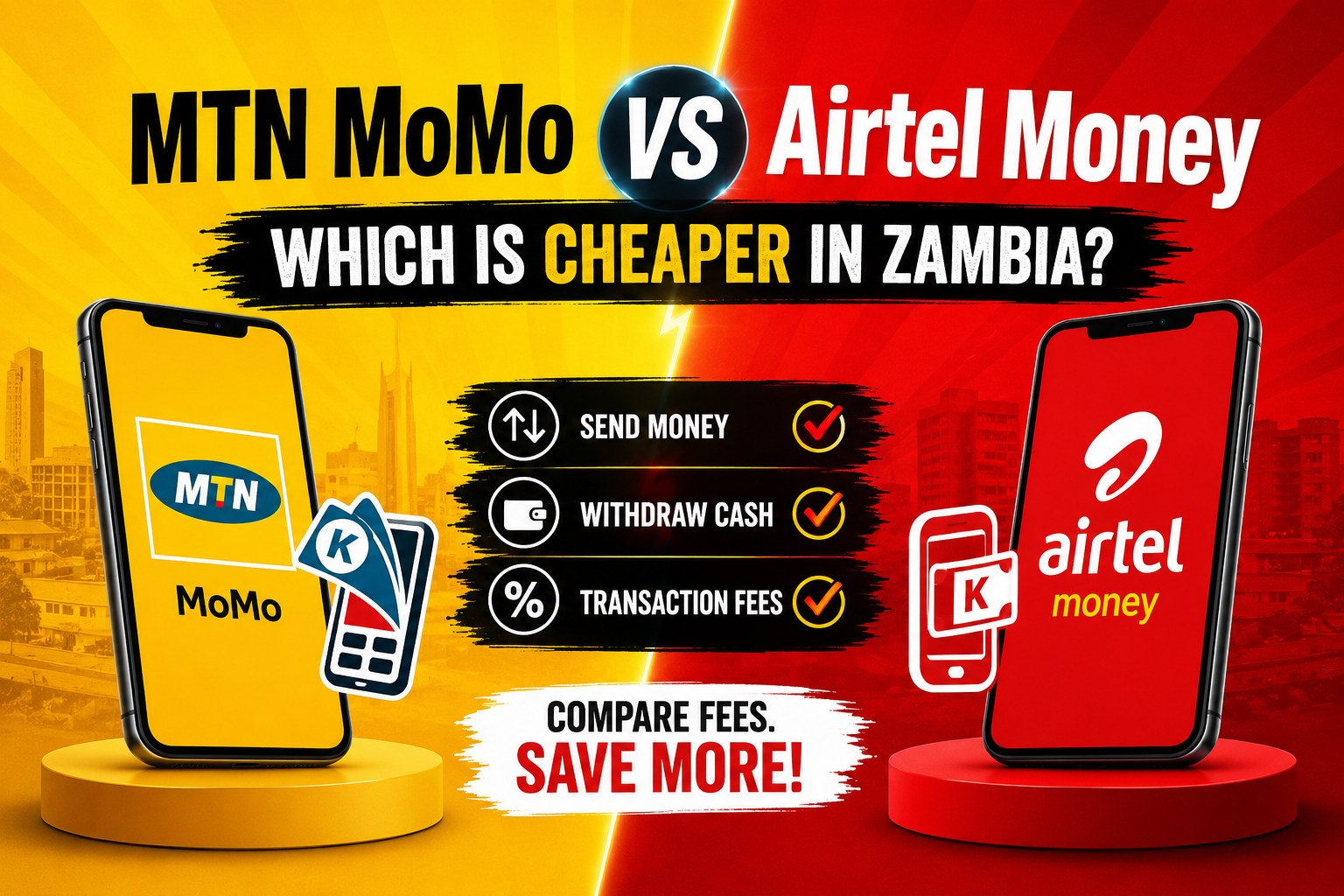
MTN MoMo vs Airtel Money: Which Is Cheaper in Zambia?
Same-network & withdrawal fees are nearly identical. Airtel Money edges ahead on cross-network transfers. MTN MoMo wins on rural agent coverage.
Why Mobile Money Fees Matter
Mobile money has quietly transformed how Zambians handle their finances. From market traders in Lusaka to students in Kitwe and farm workers in rural Eastern Province, millions rely on their phones to send money, pay bills, and receive wages — without ever stepping inside a bank.
Two names dominate this landscape: MTN MoMo and Airtel Money. Together, they handle the vast majority of mobile money transactions across the country. And while both services do essentially the same thing, the fees can differ meaningfully — especially for frequent or cross-network transfers.
This matters. If you send K5,000 every week, even a small fee difference adds up to hundreds of kwacha lost each year. This guide breaks down exactly what each service charges in 2026 — and helps you keep more money in your wallet.
What Is MTN MoMo?
MTN Mobile Money (MoMo) is the mobile financial services platform offered by MTN Zambia, one of the country’s largest telecoms providers. It has grown into one of the most widely used financial tools in Zambia, with a massive agent network stretching from major cities to remote rural areas.
Key Services
- Send money same & cross-network
- Cash withdrawals at agents & ATMs
- Pay bills (ZESCO, DSTV, school fees)
- Buy airtime & data
- Bank transfers
- Merchant payments
Key Services
- Send money same & cross-network
- Cash withdrawals at agents
- Merchant & bill payments
- Buy airtime & data
- International remittances
- Simple USSD (*778#)
MTN’s biggest advantage is its sheer reach. It operates one of the largest agent networks in Zambia, making it easy to deposit and withdraw cash in both urban centres and rural communities. For many Zambians outside major towns, an MTN MoMo agent is the closest financial service point available. Dial *303# or visit mtn.zm/momo to get started.
What Is Airtel Money?
Airtel Money is the mobile financial platform operated by Airtel Zambia. It competes closely with MTN MoMo and has a loyal customer base, particularly in areas where Airtel has strong network coverage.
Airtel Money is known for a straightforward user experience. Its USSD menu (*778#) is simple to navigate, making it popular among users who prefer feature phones or want quick, no-fuss transfers. In areas with strong Airtel coverage, the service is reliable and fast. It also supports international remittances through partner services — a useful feature for Zambians receiving money from abroad.
MTN MoMo Charges in 2026
Send Money – Same Network
| Transaction Amount | MTN Fee (Approx.) |
|---|---|
| K1 – K20 | K0.50 |
| K21 – K100 | K1.00 |
| K101 – K500 | K2.00 |
| K501 – K1,000 | K3.00 |
| K1,001 – K2,500 | K8.00 |
| K2,501 – K5,000 | K15.00 |
| K5,001 – K10,000 | K25.00 |
Cross-Network Transfers (MTN → Airtel)
| Transaction Amount | MTN Fee (Approx.) |
|---|---|
| K1,000 | K17.00 |
| K2,500 | K25.00 |
| K5,000 | K37.50 |
| K10,000 | K60.00 |
Cash Withdrawal Fees
| Transaction Amount | Withdrawal Fee (Approx.) |
|---|---|
| K1,000 | K20.00 |
| K2,500 | K35.00 |
| K5,000 | K55.00 |
| K10,000 | K90.00 |
Airtel Money Charges in 2026
Send Money – Same Network
| Transaction Amount | Airtel Fee (Approx.) |
|---|---|
| K1 – K20 | K0.50 |
| K21 – K100 | K1.00 |
| K101 – K500 | K2.00 |
| K501 – K1,000 | K3.00 |
| K1,001 – K2,500 | K8.00 |
| K2,501 – K5,000 | K14.50 |
| K5,001 – K10,000 | K24.50 |
Cross-Network Transfers (Airtel → MTN)
| Transaction Amount | Airtel Fee (Approx.) |
|---|---|
| K1,000 | K16.50 |
| K2,500 | K24.00 |
| K5,000 | K36.50 |
| K10,000 | K58.00 |
Cash Withdrawal Fees
| Transaction Amount | Withdrawal Fee (Approx.) |
|---|---|
| K1,000 | K20.00 |
| K2,500 | K35.00 |
| K5,000 | K54.00 |
| K10,000 | K88.00 |
Full Side-by-Side Comparison
| Category | MTN MoMo | Airtel Money | Winner |
|---|---|---|---|
| Same-network send (K1,000) | ~K3.00 | ~K3.00 | Tie |
| Cross-network send (K1,000) | ~K17.00 | ~K16.50 | Airtel ✓ |
| Cross-network send (K5,000) | ~K37.50 | ~K36.50 | Airtel ✓ |
| Cash withdrawal (K1,000) | ~K20.00 | ~K20.00 | Tie |
| Cash withdrawal (K5,000) | ~K55.00 | ~K54.00 | Airtel ✓ |
| Government levy | Applies | Applies | Tie |
| Agent network size | Very Large | Large | MTN ✓ |
| Rural coverage | Strong | Moderate | MTN ✓ |
| Urban coverage | Excellent | Excellent | Tie |
| USSD ease of use | *303# | *778# (simpler) | Airtel ✓ |
| Bill payments | Yes (more options) | Yes | MTN ✓ |
| International remittances | Yes | Yes | Tie |
Which Is Best for You?
Frequent Cross-Network Senders
If you regularly send to people on the other network, Airtel Money’s marginally lower cross-network fees add up to real savings over months of transfers.
Rural & Peri-Urban Users
MTN has invested heavily in its agent network outside major cities. Finding an agent to deposit or withdraw in small towns is far easier with MTN.
Feature Phone & USSD Users
Airtel’s *778# menu is widely praised for being fast and easy to navigate — ideal for users who prefer USSD over a smartphone app.
Business Owners
MTN’s larger merchant ecosystem, more bill payment integrations, and wider agent network give it an edge for business use and managing float.
Students & Workers
Same-network transfers are identically priced on both. Use whichever network your sender uses most often to avoid cross-network fees entirely.
International Remittances
Both platforms support international money transfers through partner services. Compare the specific partner rates for the corridor you use.
Hidden Costs Users Often Overlook
Many Zambians focus on the headline transfer fee and miss other costs that quietly erode their money. Here are the key ones to watch:
-
1
The Government Mobile Money Levy
Zambia applies a transaction levy on mobile money transfers — charged on top of the network’s own fee. It applies to most transfer types on both platforms. For large or frequent transfers, this levy adds up significantly. Always factor it into your total cost.
-
2
Cross-Network Penalties
Sending to a different network costs ~K14 more per K1,000 compared to a same-network transfer. If you regularly send cross-network, this is your biggest controllable cost.
-
3
Unnecessary Cash Withdrawals
Withdrawing cash every time money arrives means paying a withdrawal fee each time. Using your wallet balance to pay bills or merchants directly avoids this cost entirely.
-
4
Failed Transaction Re-sends
A failed transfer can result in a temporary hold. Re-sending doubles your fee exposure. Always verify the recipient’s number before confirming.
-
5
Agent Float Problems
During busy periods, an agent may lack cash to process your withdrawal. This forces travel to another agent — costing time and sometimes transport money. MTN’s larger network reduces this risk.
Real Zambia Examples
Joseph, Lusaka → Chipata (K3,000/month, cross-network)
Joseph works in Lusaka and sends K3,000 home to his family in Chipata every month — from MTN to his mother’s Airtel Money account. His total cost (network fee + government levy) is approximately K28–K32 per transfer. If both switched to the same network, the fee would drop to around K8–K10 per transfer.
Mercy, Kitwe (K5,000 × 2 per week, cross-network)
Mercy pays her vegetable supplier K5,000 twice a week via mobile money. Using Airtel Money for the cross-network transfer costs ~K36.50 per transaction vs. MTN’s ~K37.50. The difference is K1 per transfer.
Chanda’s parents, MTN → Airtel (K2,000/month)
Chanda’s parents send her K2,000 each month from MTN MoMo to her Airtel Money account. The cross-network fee is ~K25 per transfer. If both used the same network, the fee drops to ~K8.
Frequently Asked Questions
Calculate Your Exact Fees Before You Send
Use our free calculators to see the exact MTN MoMo and Airtel Money charges for your specific transaction amount — instantly.